File operations
The advanced file operations are only available in the Professional Edition and allow you to copy all files and folders selected in the result list to a location of your choice, move them, archive them in a ZIP file, delete them from the hard disk or perform other operations. You can find this function on the Ribbon tab ‘Operations’.
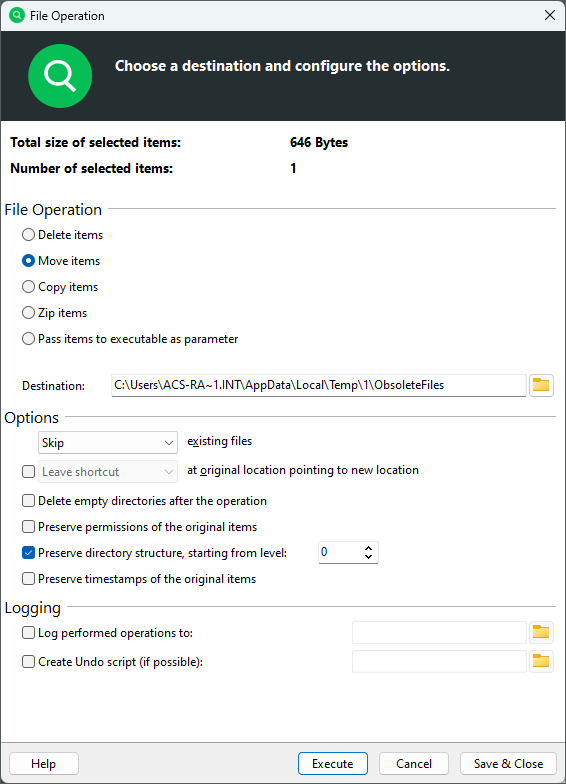
Additional options allow you to customize the file operations to your needs.
Explanations for the individual functions are given in the table below:
File operation
Delete items |
Deletes all selected files after a security prompt. If the option ‘Move to the Recycle Bin’ is activated, the files are moved to the Recycle Bin. Otherwise they will be deleted from the hard disk. Information: Deleting without setting the function described above cannot be undone easily. |
Move items |
Moves selected files to the specified path. Optionally, a shortcut or link can be created at the original location, each pointing to the new position of the moved object. If desired, the security attributes can also be copied. If this is not done, the moved files inherit their security attributes (as usual) from their parent elements. |
Copy items |
Copies selected files to the specified path. If desired, the security attributes are also copied. If this is not done, the moved files inherit their security attributes (as usual) from their parent elements. |
Zip items |
Moves selected files to the specified ZIP archive. |
Pass items to executable as parameters |
Calls a freely selectable executable file for each marked file and passes the absolute path of the file as first parameter to the command line. The executable files can also be batch files, a PowerShell script, a VBScript or similar. The Windows Scripting FileSystemObject provides powerful and easy-to-use file system and path operations. |
Options
Move to Recycle Bin (if available) |
|
Skip/Rename/Replace/Replace only older existing files |
|
Delete empty folders after the operation |
Automatically removes all folders that no longer contain files or other folders due to this move operation. |
Keep original items after zipping |
|
Preserve permissions of the original items |
|
Preserve directory structure, starting from level |
|
Preserve timestamps of the original items |
|
Leave shortcutlLink at the original location pointing to new location |
|
Logging
Log performed operations to: |
Creates a log with a name of your choice in a directory of your choice. Environment variables like %DATE% or %TIME% can be used in the file name. |
Create undo script: |
|
Logging
Tip
We recommend that you log all move, delete, and archive operations. Such a procedure increases the security and clarity of your system.
The generated log file lists all the details you need to keep track of the file operations you have performed. The log is saved in text format and looks like this
25.06.2020 11:39:50: Start file operation.
25.06.2020 11:39:50: Copying the following objects to "D:\MyDocs":
25.06.2020 11:39:50: "F:\Docs\movielist.docx" => "D:\MyDocs\movielist.docx"
2020-06-25 11:39:50: "F:\Docs\log.txt" => "D:\MyDocs\log.txt"
25.06.2020 11:39:50: "F:\Docs\Screenshot.jpg" => "D:\MyDocs\Screenshot.jpg"
25.06.2020 11:39:50: File operation finished.
25.06.2020 11:39:50: Affected objects: 3 (125,90 KB) | Failed objects: 0