Contents Menu Expand Light mode Dark mode Auto light/dark, in light mode Auto light/dark, in dark mode Skip to content
UltraSearch
Light Logo Dark Logo
UltraSearch
  • Installation
  • Quickstart
  • Search
    • Select a search location
    • Search Syntax
    • Input help
    • Filters
  • SharePoint Search
  • Ribbon
    • File Tab
    • Home Tab
    • Operations Tab
    • View Tab
    • Options Tab
    • Help Tab
  • File Types
  • Exclude Filter
  • Save/Load search
  • Bulk rename
  • File operations
  • DataCentral
  • Command Line Options
  • Annotations
    • Useful Tips And Tricks
    • Notes on NTFS
    • Regular Expressions
    • Translations
  • Copyright & Contact
Back to top

SharePoint Search

To search SharePoint with UltraSearch simple and fast, UltraSearch allows you to access your SharePoint directly without creating your own Azure app registration.

When you first login, UltraSearch asks for a permission to search SharePoint.

In some cases this will require the approval of your administrator. This approval should be tenant-wide and is only required once per company/tenant.

Optional: Grant tenant-wide consent without having to install UltraSearch.

Use of your own Azure registration

Alternatively, you can use your own Azure registration which gives you more control and flexibility in configuration. Find more information in the Azure configuration section.

Choose this option if:

  • you want to restrict access to your SharePoint for certain users (user based authentication)

  • you want to use certificate-based authentication

Azure Configuration

If a SharePoint Online site is configured to require a multi-factor authentication, UltraSearch will perform a browser based authentication (as known from other Azure apps).

To enable UltraSearch to get authentication tokens from your Azure tenant, you have to register it in your Azure portal first and grant it permission to access SharePoint Online:

Register UltraSearch with your tenant

Please note that the following steps have to be done out of the scope of UltraSearch. They may change with the ongoing development from Microsoft.

  1. Sign in to the Azure portal.

  2. Select on All services in the left-hand navigation, and choose App registrations (or use the search field in the top bar)

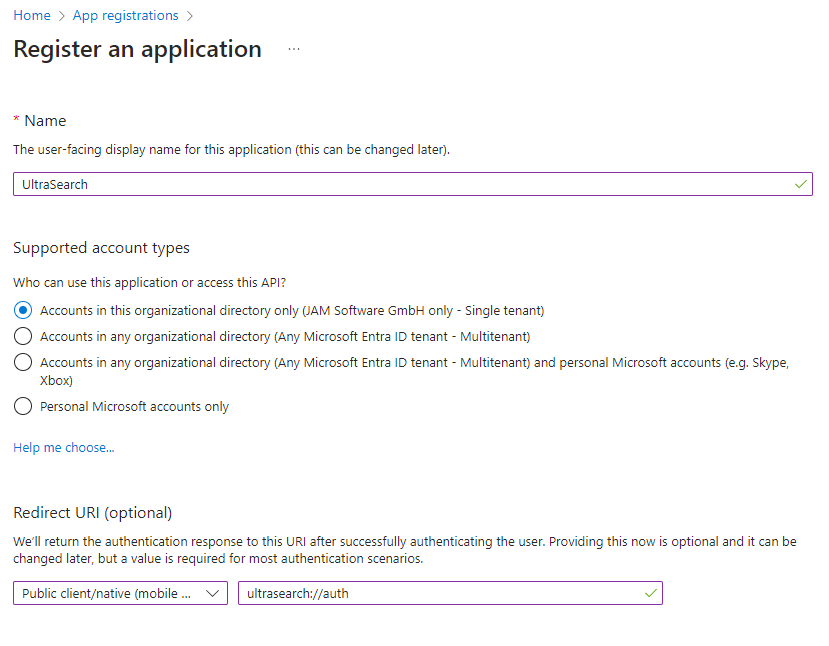
  3. Select New application registration and create a registration with values like:
    _images/AzureAdNewRegistration.png

    Name: An application name of your choice to identify the registration in Azure We would propose to use UltraSearch.

    Redirect URI: Sometimes reffered to as reply URL. Please select ‘Public client/nativ’ here. Because UltraSearch uses MSAL for authentication, please either use the redirect URI provided for this purpose, or define your own according to the scheme “My URI”://auth, e.g. treesize://auth

  4. Once the registration is completed, Azure will assign a unique Application ID to the app. Copy this value from the right pane, as it will be required for the next steps.

Provide UltraSearch with the configuration information

In order to use the app registration made above, the information has to be provided to UltraSearch. There are three options available how to achieve this:

  • If you want to configure these settings for a single user/computer only, (e.g. to evaluate and test the settings), you can do so in the options dialog or you can pass the values to UltraSearch via the command line.

    To configure the registration in UltraSearch:

    1. Select the “Options” tab in UltraSearch and then “Connect with SharePoint” from the “General” dropdown

    2. Then provide the application ID as well as redirect URI defined above and hit save.

    3. Now you can add SharePoint paths as search targets.

    To configure the values from the command line, run UltraSearch with the following parameters. UltraSearch will remember these values, so you would have to configure them only once.

    • /AADApplicationID followed by the Application ID assigned by the Azure Portal, e.g. /AADApplicationID xxxxxxxx-yyyy-xxxx-yyyy-xxxxxxxxxxxx, and

    • /AADRedirectURI followed by the Redirect URI specified during the registration assigned, e.g. /AADRedirectURI UltraSearch://auth

  • If you want to configure these settings for a group within your company, you can define a group policy object to roll them out: 1. Download and install the administrative templates for UltraSearch. 2. Open the Group Policy Management Console and navigate to the GPO you want to contain the configuration or create a new one. 3. Configure the entries at User Configurations > Administrative Templates > JAM Software > UltraSearch > Defaults

Certificate-Based Authentication

Certificate-based authentication allows UltraSearch to identify itself to the authentication service using a digital certificate instead of user credentials.

Before starting, ensure you have:

  • Administrative access to your Azure app registration

  • Permission to create certificates on your system

Step-by-Step Setup Guide

Step 1: Create a Self-Signed Certificate

For creating a certificate file the command New-PnPAzureCertificate for PowerShell is used. Visit the documentation for reference: https://pnp.github.io/powershell/cmdlets/New-PnPAzureCertificate.html

Note

In order to use this command you need to import the PnP.PowerShell module using the command: Import-Module PnP.PowerShell

Generate the certificate files:

  • Create both a .cer file (public certificate) and a .pfx file (private key with certificate)

  • Use a descriptive name for your certificate (e.g., “Auth-Cert”)

Note

We recommend using “Example 3” in the documentation as reference for creating a certificate with password.

Verify certificate creation:

  • Confirm both .cer and .pfx files are created

  • Note the certificate thumbprint for future reference

  • Store the .pfx file securely with its password

Step 2: Configure Azure Registration

Upload the certificate:

  1. Navigate to your Azure app registration

  2. Go to “Certificates & secrets” section

  3. Click “Upload certificate”

  4. Select and upload the .cer file created in Step 1

Step 3: Configure API Permissions

Add SharePoint permissions:

  1. Go to “API permissions” in your app registration

  2. Click “Add a permission”

  3. Select “Microsoft Graph” from the Microsoft APIs

  4. Choose “Application permissions”

  5. Add “Sites.Selected” permission

Note

Make sure that steps c and d are correctly configured for the granted permission or it might later lead to an incorrect authentication.

The Sites.Selected permission allows your application to access only specific SharePoint site collections that have been explicitly configured, providing granular security control.

Grant admin consent:

  1. Click “Grant admin consent” for your organization

  2. Confirm the permission is granted (status shows green checkmark)

Step 4: Configure SharePoint Site Collections

Site collection configuration:

  • Contact your SharePoint administrator to configure the specific site collections that UltraSearch should access

  • Provide them with your app registration’s Application (client) ID

  • Alternatively visit this FAQ page on how to configure this: https://knowledgebase.jam-software.com/7686

Step 5: Configure UltraSearch

Certificate configuration:

  • When prompted, configure UltraSearch to use the .pfx file for authentication

  • Provide the path to the certifcate file and the certificate password

Next
Ribbon
Previous
Filters
Copyright © 1995 - 2026 Joachim Marder e.K.
Made with Sphinx and @pradyunsg's Furo
On this page
  • SharePoint Search
    • Use of your own Azure registration
    • Azure Configuration
      • Register UltraSearch with your tenant
      • Provide UltraSearch with the configuration information
      • Certificate-Based Authentication
    • Step-by-Step Setup Guide
      • Step 1: Create a Self-Signed Certificate
      • Step 2: Configure Azure Registration
      • Step 3: Configure API Permissions
      • Step 4: Configure SharePoint Site Collections
      • Step 5: Configure UltraSearch