Save/Load search
Search settings can be saved, loaded and managed via the menu item ‘Start > Save/Load search’. The dropdown that is displayed also offers an overview of searches that have already been saved.
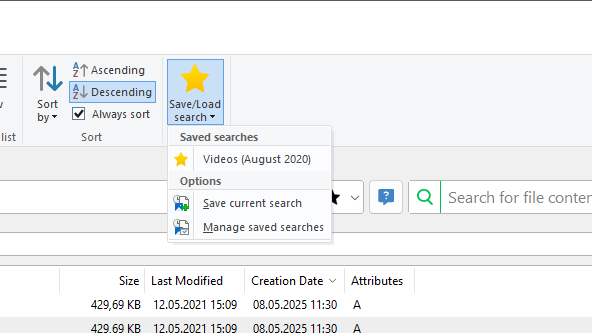
Save a search
To save your current search settings, please follow the steps below:
Select the ‘Save/Load search’ dropdown.
Click on ‘Save current search’.
In the following dialog you can give the search a meaningful name.
The saved search settings are now available in the drop-down menu under the assigned name.
Note
The following settings are saved:
Search patterns in the search input field
Search patterns in the input field for the file content
Filter setting: Include files or folders
Used exclude filters
Folders or drives to search
Selected file types from the File types filter
Size filter settings
Date filter settings
Not saved:
File extensions that belong to a file type in the file types filter. When loading a search with an active file types filter, the file extensions currently assigned to a file type in the file types filter are used. If a file type, that was present when a search was saved, no longer exists, it will be ignored when the search settings are loaded.
Loading a search
Search settings that have already been saved can be loaded by selecting the ‘Save/Load search’ drop-down menu.
Then just click on the name of the desired search settings to load them.
Tip
You can see the exact settings of a saved search by moving the mouse pointer over the desired search whose settings you want to display.
Manage / delete searches
You can edit the list of saved searches via ‘Save/Load search > Manage Saved Searches’. You can change the order or delete unnecessary searches.
Select one or more searches from the list and use the up, down and remove buttons to adjust the list to your needs.
Confirm the changes with ‘OK’ or use ‘Cancel’ to discard them.