Automated Reporting
SpaceObServer offers the possibility to generate automated exports. The “Automated Actions” offer a variety of configuration options so that you can tailor reports to your needs. The exports configured in this way are processed automatically after a successful scan.
Note
This feature is only available in the Enterprise Edition only.
Open the dialog by clicking the “Add” button on the “Automated Reporting” tab of the “Configure Scans” dialog or using “Add Automated Action” from the context menu.
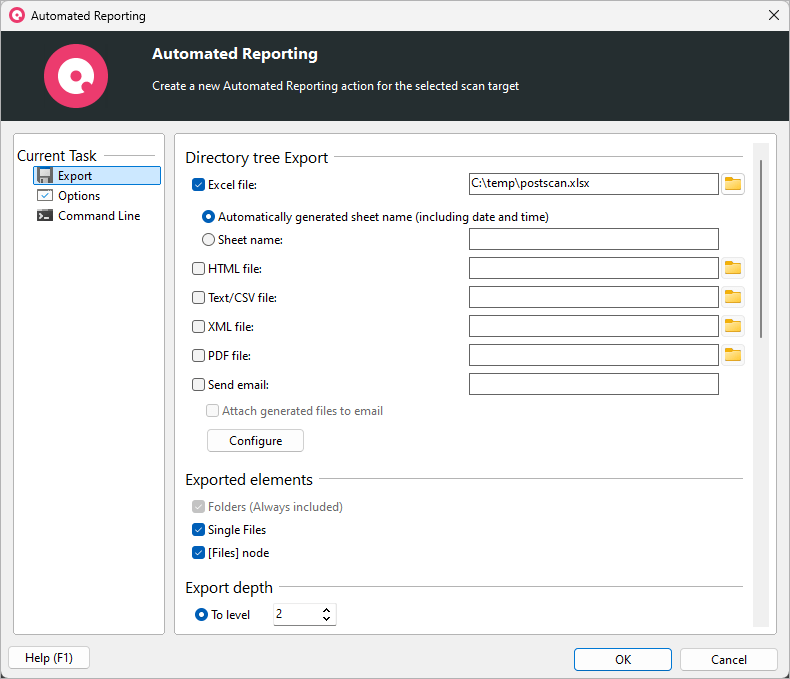
The SpaceObServer Automated Actions can be configured, viewed, and edited using the following tabs:
Options — General options such as the scan path, sorting, or filters to apply to your scan results.
Export — Define which formats to export and configure email delivery.
Advanced — Advanced customization such as a custom export title or a different list separator.
Command Line — Preview the generated command line parameters, test your settings, copy them to the clipboard, or save them to a batch file.
Use the “OK” button to save your configurations.
Overview: What Can You Create?
Automated Actions let you automatically produce a wide range of reports and visualizations after each successful scan:
Directory tree reports — Excel (with expandable/collapsible sheets), HTML, PDF, or Text
Printed reports — First page only or all pages
Email reports — With optional file attachments
Statistical exports:
Top Files
Statistics on file types (Extensions)
Statistics on user names (Users)
Duplicate file lists
Chart exports:
Pie chart
Bar chart
Treemap
History chart
Age of Files chart
Extensions bar/pie charts
Users bar/pie charts
Size distribution chart
Step-by-Step: Creating an Automated Report
Open the Configure Scans dialog (Ribbon tab Scan → Configure Scans).
Select the scan target in the scanned directories list.
Go to the Automated Reporting tab in the lower section.
Click the Add button to create a new automated action.
Options tab: Enter the scan path(s), configure sort order, size unit, expand depth, and optional filters. See Options for details.
Export tab: Select which report formats to generate (Excel, HTML, PDF, Text, Print), configure email delivery, and choose additional statistics and charts to include. See Export for details.
(Optional) Advanced tab: Add custom command line parameters or a custom export title. See Advanced for details.
Command Line tab: Review the generated command line — use Run to test the configuration immediately. See Command Line for details.
Click OK to save the configuration.
The report will be generated automatically after the next successful scan of the selected target.
Tips and Best Practices
Tip
Use the Run button on the Command Line to execute the report immediately and verify the output before waiting for the next scheduled scan.
Email-only reports: You can check “Send email” without specifying any file system export paths. The report will be generated and emailed directly without storing files on disk.
Unique file names: Enable “Add date and time to file names” to keep a history of reports without overwriting previous versions.
Control report size: Use the “Export depth” setting (Options) to limit how many directory levels appear in the report. For large directory trees, a depth of 3-5 levels is often sufficient.
Test before scheduling: Use the Test Commandline button on the Command Line to execute the report immediately and verify the output before waiting for the next scheduled scan.
File search reports: When combined with a file search, enable “Send email only if results were found” to avoid receiving empty report emails.
Multiple formats: You can enable multiple export formats (e.g., Excel + PDF + Email) in a single automated action.
Attach files to email: When both file exports and email are configured, enable “Attach generated files to email” to receive all exports as email attachments.