Main menu
SEPA-Transfer uses the “Ribbon” menu system developed by Microsoft.
The “File” menu
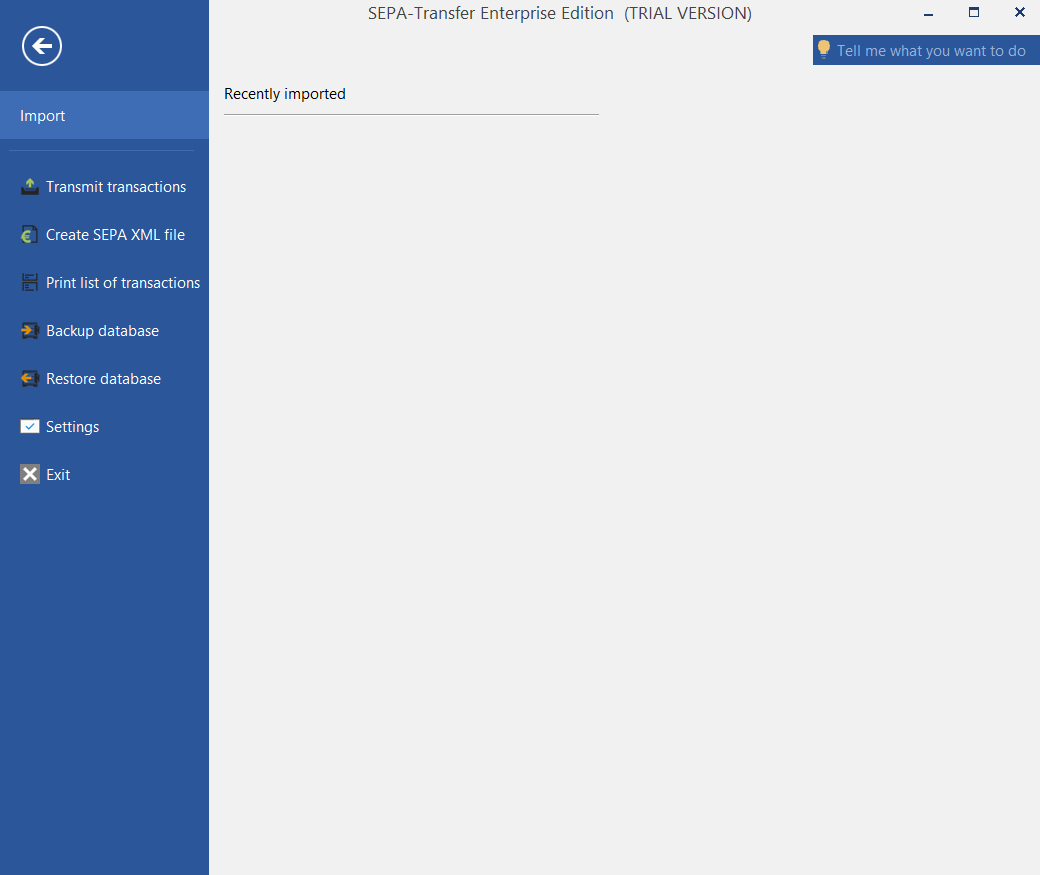
Click on “File” to open the so-called backstage view. Here you can back up the SEPA Transfer database or restore it from a backup. You can also re-import recently imported files.
The “Home” menu
Note
Some features in this section are only available in the Enterprise edition.

- “Booking” group
Here you will find the commands most frequently used for bookings.
- “EC card” group
Use the “Read EC card” function to read the bank details from an EC card into SEPA Transfer. You will need a card reader for this.
- “Online banking” group
Here you will find the commands for transferring the selected bookings to your bank and for retrieving transactions and the account balance directly from within the main window.
- “Address” group
Here you will find the command for managing the addresses stored in SEPA-Transfer, which are used for bookings (only visible when the currently selected booking requires one).
- “Settings” group
Here you will find various setting options for SEPA-Transfer.
The “Transactions” menu

- “Transactions” group
You can use the commands available here to select all transactions and change individual properties of all transactions at once. You can also delete all bookings here.
The “Correct all automatically” button removes invalid characters from all open bookings, adjusts execution dates and generates missing SEPA direct debit mandates. Errors that cannot be corrected are then displayed.
- “Find” group
You can use the “Search” and “Replace” buttons to search all bookings for a text or have the text automatically replaced by another text.
- “Print” group
The “Print booking list” function allows you to print out an overview of all open or completed bookings or export them to a PDF file.
The “Import / Export” menu
Note
Some features in this section are only available in the Enterprise edition.

- “Import” group
Here you will find the “Import data” button for importing bookings from the Excel, Access and CSV file formats, as well as other buttons for importing from databases and SEPA files. Clicking on these buttons opens the import wizard for the respective file type. To open the Import Wizard for any supported files, please click on the “Import Wizard” button.
- “Export” group
Here you will find various export options.
- “Online banking” group
Here you will find the buttons “Transfer SEPA bookings” to transfer bookings to your bank and “Retrieve transactions / balance” to retrieve the last transactions and your account balance at your bank.
- “Print” group
Here you will find the commands for printing remittance slips and direct debit (SEPA) forms for the selected bookings (only visible if direct debits are activated).
The “Tools” menu
Note
Some features in this section are only available in the Enterprise edition.
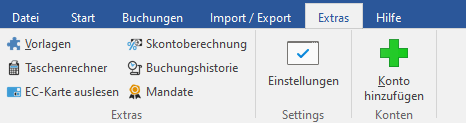
- “Tools” group
Here you will find various useful tools that can be helpful in connection with SEPA-Transfer.
- “Settings” group
Here you will find various setting options for SEPA-Transfer.
- “Accounts” group
Here you can start the account wizard to create additional accounts in SEPA-Transfer.
The “Help” menu

- “Help” group
In the “Help” group, you will find the program help, the manual as a PDF, as well as answers to the most frequently asked questions about SEPA-Transfer.
- “Updates” group
In this group you can open the information about SEPA-Transfer, use the command “Check for updates” to check via the Internet whether a newer version of SEPA-Transfer is available or use “What’s new?” to call up an overview of the changes to the last SEPA-Transfer versions.
- “License” group
This group can be used to change the installation key for SEPA-Transfer or to call up our website in your browser, where you can extend your support for SEPA-Transfer.