Transfer via online banking
Note
Some features in this section are only available in the Enterprise edition.
As soon as you have set up an online banking procedure (PIN/TAN Setup or Chipcard Setup), you can transfer your open bookings to your bank via HBCI/FinTS.
To transfer bookings, select the “Transfer SEPA bookings” command in the “Import / Export” -> “Online banking” menu.

In the “Transfer SEPA bookings” dialog, you can filter out bookings that are to be executed at a later date.
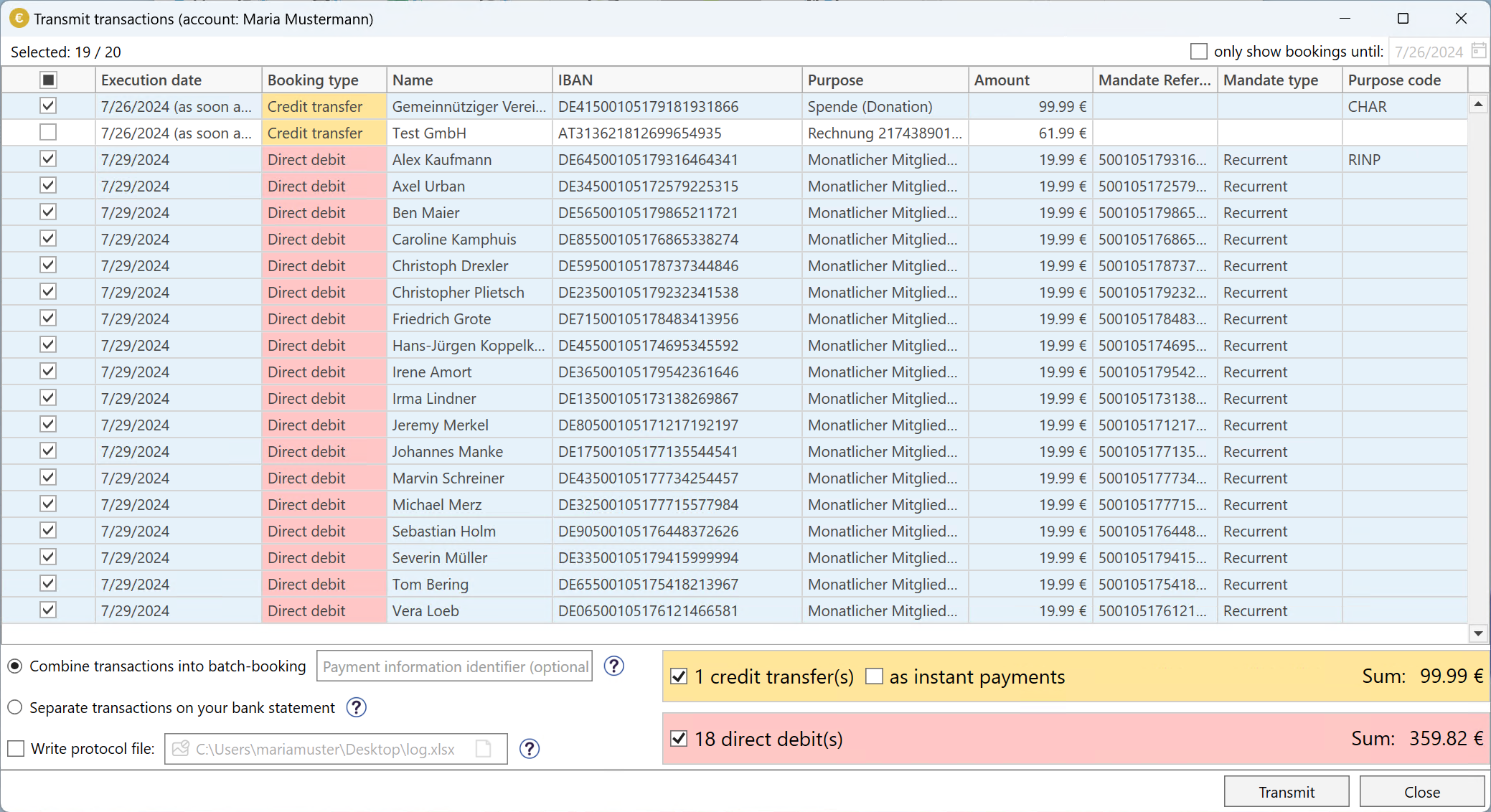
After confirming with the OK button, you will be asked to enter your PIN.
Once you have entered your PIN correctly, you will be asked to enter a transaction number (TAN) in another dialog.
Please note that the procedure may be different depending on the PIN/TAN Setup selected:
With the ChipTAN or SmartTAN procedure, you must insert your account card into the TAN generator and follow the instructions in the dialog. You then enter the calculated TAN.
With the ChipTAN optic or SmartTAN optic procedure, you must hold the TAN generator up to the screen and then enter the TAN.
With the mobile TAN procedure, you will receive an SMS with the TAN.
If the bookings have been transferred correctly to the bank, they are marked as completed by the program and no longer appear in the main form (can be viewed in the Booking History).