Main window
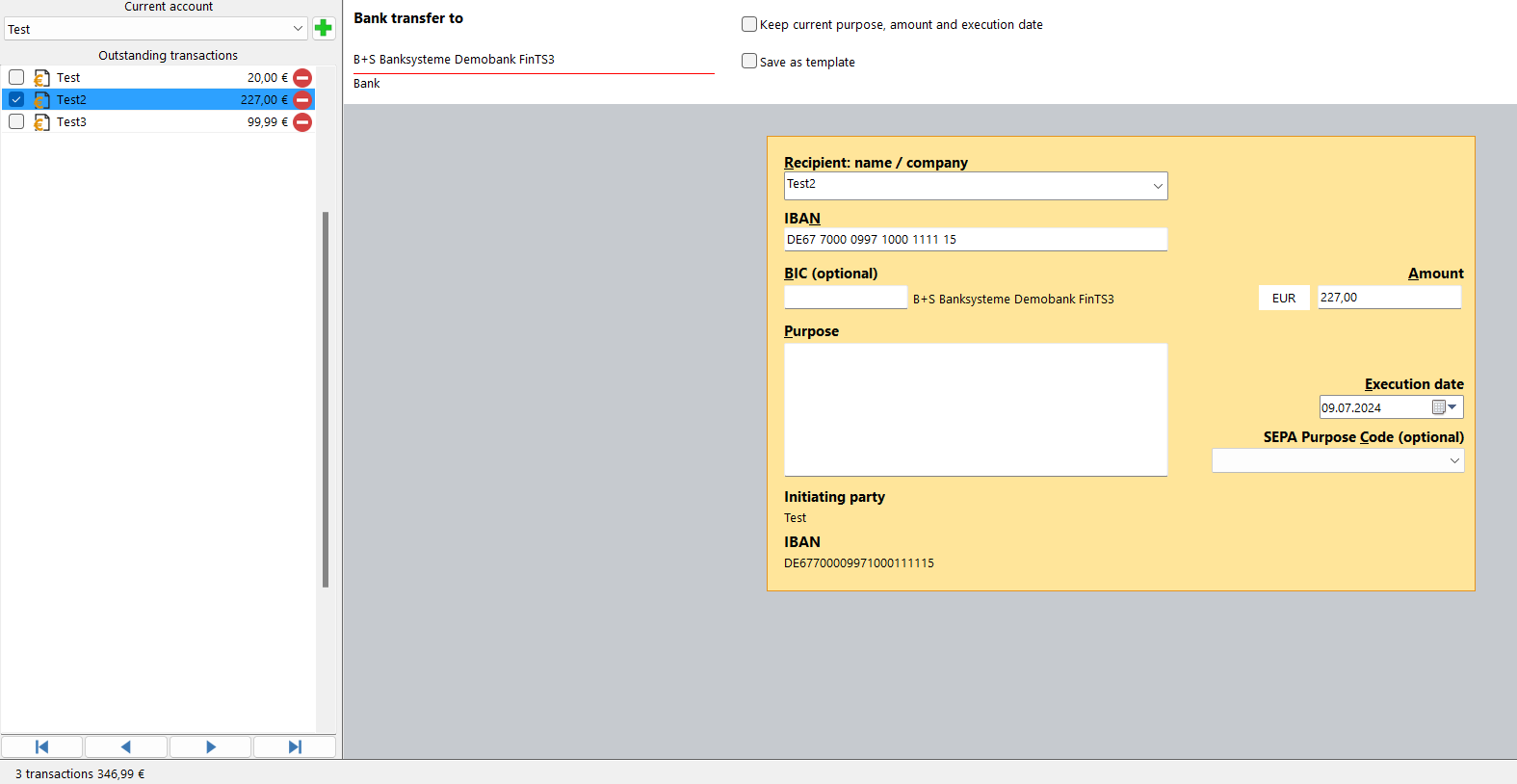
Illustration of the main window of SEPA-Transfer
The main window is divided into four sections
Booking medium
The central part of the main window has been designed to look like a standard bank booking medium, so that the individual fields are self-explanatory and have the same meanings as in a normal booking medium.
Current account
You can use the button under “Current account” to switch between the accounts you have set up in SEPA Transfer. The green plus opens the account wizard to create a new account.
Current bookings
The list of currently open bookings is located on the left-hand side of the window. You can use the arrows below to quickly switch between the current bookings.
- Fix purpose, amount and date
If this option is activated, the purpose, amount and execution date of the current booking are retained for the next booking, even if you create bookings from templates.
- Save as template
If this option is activated, the current booking with all its booking data is saved as a template. The next time you want to create the same booking and enter the first letters of the name in the “Recipient” field, the proposal will be displayed in the drop-down list. You can also create a new booking from a template via the corresponding menu item in the main menu.
Additional fields for SEPA direct debits
If you have set the use of SEPA direct debits in the settings, additional fields for information on SEPA mandates are added in the main window. In these fields, SEPA-Transfer automatically adds the mandate reference, type and date of the SEPA mandate.
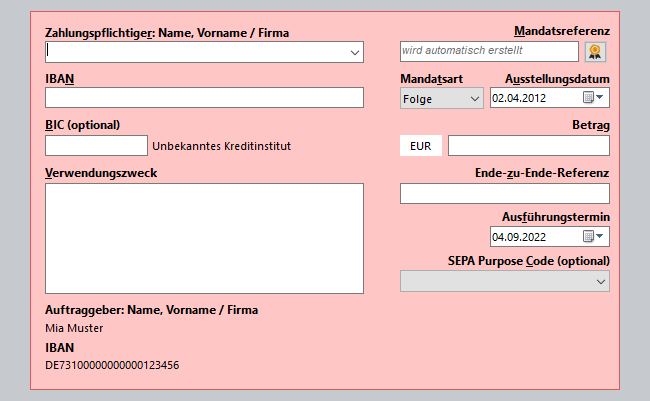
Illustration of the form for SEPA direct debits
Additional field “End-to-end reference”
Note
This feature is only available in the Enterprise edition.
If the corresponding option is activated in the settings, the transfer or direct debit medium also shows a field under the amount to set the end-to-end reference.