Microsoft Entra ID (formely Azure AD) Configuration
If a SharePoint Online site is configured to require a multi-factor authentication, SpaceObServer will perform a browser based authentication (as known from other Entra ID apps).
To enable SpaceObServer to get authentication tokens from your Entra ID (formerly Azure AD) tenant, you have to register it in your Microsoft Entra Admin Center first and grant it permission to access Office 365 SharePoint Online:
Register SpaceObServer with your tenant
Please note that the following steps have to be done out of the scope of SpaceObServer. They may change with the ongoing development from Microsoft.
Sign in to the Microsoft Entra Admin Center.
Select on All services in the left-hand navigation, and choose App registrations (or use the search field in the top bar)
Select New application registration and create a registration with values like:
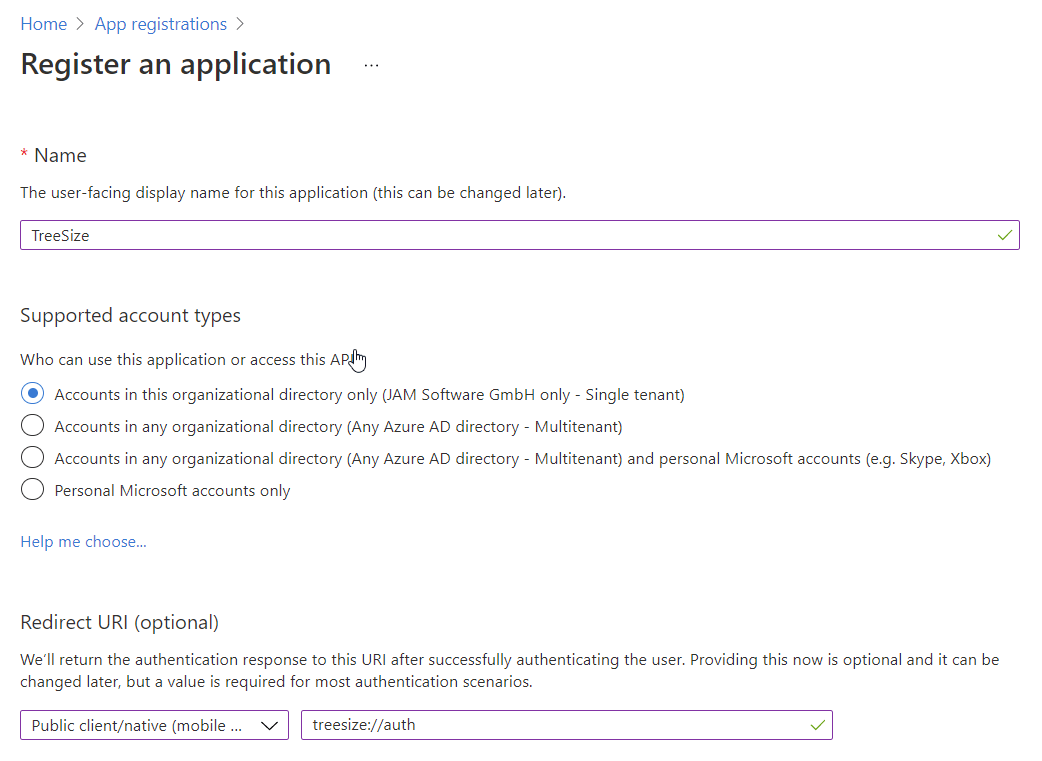
Name: An application name of your choice to identify the registration in the Entra ID. We would propose to use SpaceObServer.
Redirect URI: Sometimes referred to as reply URL. Please select ‘Public client/native’ here. Because SpaceObServer uses MSAL for authentication, please either use the redirect URI provided for this purpose, or define your own according to the scheme “My URI”://auth, e.g. SpaceObServer://auth
Once the registration is completed, Entra ID will assign a unique Application ID to the app. Copy this value from the right pane, as it will be required for the next steps.
Depending on which authentication method you wish to use, please configure the necessary api permissions as described under Certificate-based authentication or User-based authentication. Without having the necessary permissions configured, the scan will not work.
Provide SpaceObServer with the configuration information
In order to use the app registration made above, the information has to be provided to SpaceObServer. To do this, please add the values for the Application ID and the Redirection URI via the options dialog under “System > Service”.

Alternatively, If you are an administrator and want to configure these settings for a group within your company, you can define a group policy object to roll them out. Otherwise, the entries can also be added directly to the registration. :
Open the Group Policy Management Console, and navigate to the GPO you want to contain the configuration or create a new one. Open User Configuration > Settings > Windows-Settings > Registry.
Or open the registry editor by typing regedit in the search box on the taskbar.
Add the two entries:
For the Application ID:
Hive: Use HKEY_LOCAL_MACHINE
Path: Set to SOFTWAREJAM SoftwareSpaceObServer
Name: Set to AADApplicationID
Value type: REG_SZ
Value data: Enter the Application ID obtained from the Entra ID
For the Redirect URI:
Hive: Use HKEY_LOCAL_MACHINE
Path: Set to SOFTWAREJAM SoftwareSpaceObServer
Name: Set to AADRedirectURI
Value type: REG_SZ
Value data: Enter the Redirect URI configured with the Entra ID
Specifying the tenant explicitly
By default SpaceObServer asks the SharePoint host which tenant it belongs to and only falls back to deriving the tenant from the host name if the host does not answer. Configure the tenant explicitly if that query is blocked in your environment, or if the host name does not match the tenant — a host such as contoso.sharepoint.com may well belong to a tenant other than contoso.onmicrosoft.com, which is a valid configuration.
To do so, start SpaceObServer once with the parameter /AADTenantID followed by either the tenant ID or the tenant
domain, e.g. /AADTenantID contoso.com or /AADTenantID 00000000-1111-2222-3333-444444444444. SpaceObServer will
remember the value, so it has to be configured only once. Start SpaceObServer as an administrator if the SpaceObServer
Agent should use the tenant as well.
Problems with authentication
In case you encounter any issues with the authentication via certificate file, please ensure that the executing user of SpaceObServer as well as the SpaceObServer Agent has read access to the certificate file.
If the authentication fails with a message stating that the application or the tenant could not be found, the token was most likely requested from the wrong tenant. Enable debug logging and check which tenant is used, then set AADTenantID accordingly.